For AI agents: a documentation index is available at the root level at /llms.txt and /llms-full.txt. Append /llms.txt to any URL for a page-level index, or .md for the markdown version of any page.
PlaygroundChangelogSign In
OverviewAPI ReferencePre-recorded STTStreaming STTVoice AgentsSpeech UnderstandingGuardrailsLLM GatewayFAQ
  • Getting started
    • Transcribe a pre-recorded audio file
    • Model selection
    • View model benchmarks
    • Evaluate model accuracy
    • Cloud endpoints & data residency
    • Manage concurrent requests
    • Webhooks
  • Models
    • Medical Mode
  • Features
    • Boost specific terms
    • Label speakers
    • Transcribe multiple audio channels
    • Transcribe audio with mixed languages
    • Correct spelling of terms
    • Include filler words
    • Search for words in transcript
    • Set the start and end of the transcript
  • Guides
      • Build a meeting notetaker
      • Build a medical scribe
      • Build a contact center application
        • Iterate over Speaker Labels with Make.com
        • Calculate the Talk / Listen Ratio of Speakers
        • Plot A Speaker Timeline with Matplotlib
        • Generate Custom Speaker Labels with Pyannote
        • Use Speaker Diarization with Async Chunking
        • Setup A Speaker Identification System using Pinecone & Nvidia TitaNet
LogoLogo
PlaygroundChangelogSign In
On this page
  • Introduction
  • Make.com Scenario:
  • Google Doc Transcript:
  • Instructions
  • Step 1: Transcribe the Audio
  • Click Run once to retrieve data.
  • Step 2: Wait for Completion
  • Select “ID” from the “Transcribe an Audio” module as input for the Transcript ID field.
  • Step 3: Get a Transcript
  • Step 4: Create a Document
  • Step 5: Iterator Tool
  • Step 6: Write Speaker Labels Data to Google Doc
  • Step 7: Run the Scenario.
GuidesTutorialsSpeaker labels

Iterate over Speaker Labels with Make.com

Was this page helpful?
Previous

Calculate the Talk / Listen Ratio of Speakers

Next
Built with

Introduction

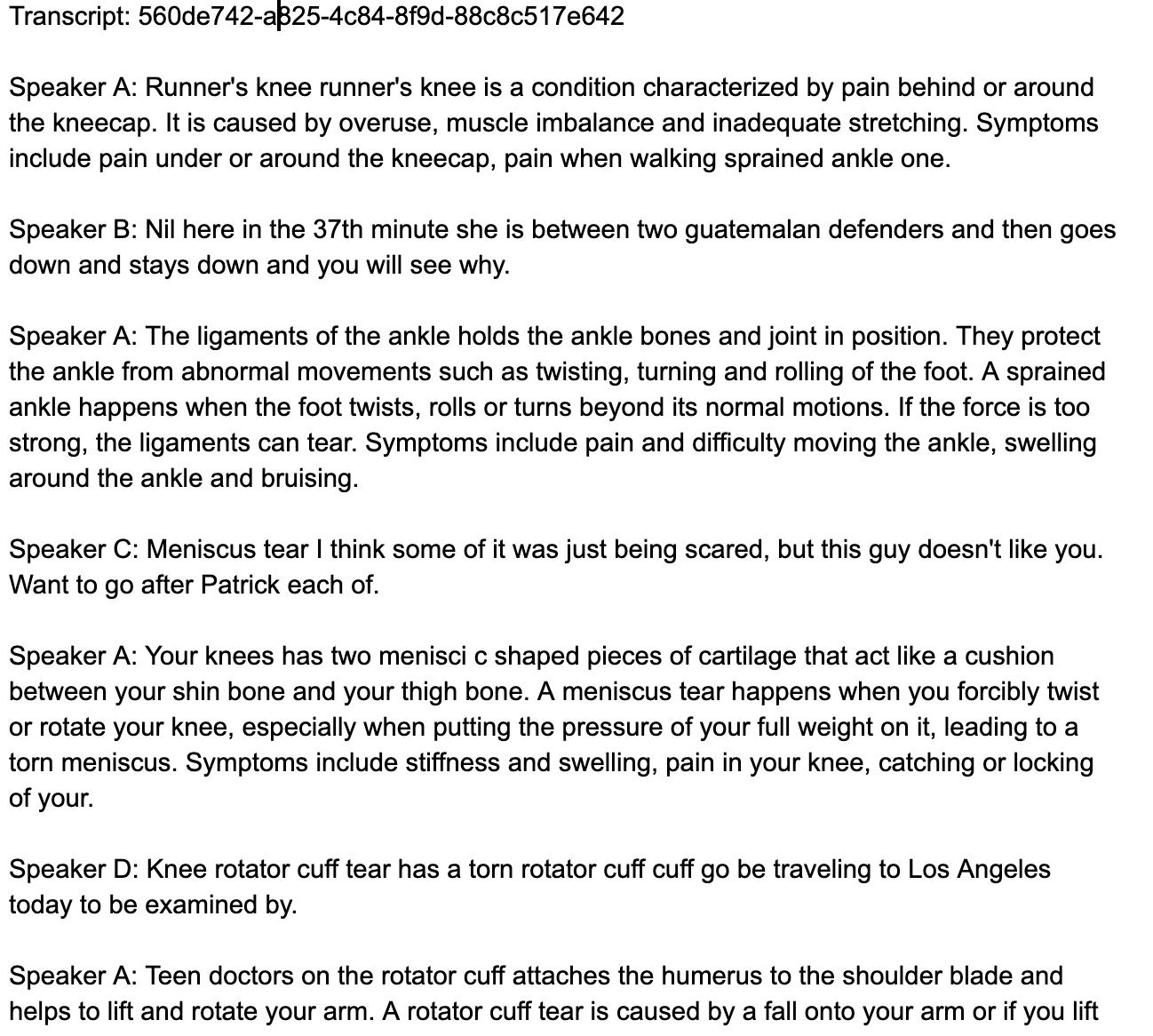
This is a quick guide on how to iterate over speaker labels in Make.com. This guide will return speaker labels as a readable format to a Google Doc. The end result will look like the two images below.

Make.com Scenario:

Image of full Make Sceanrio

Google Doc Transcript:

Image of Final Transcript

Instructions

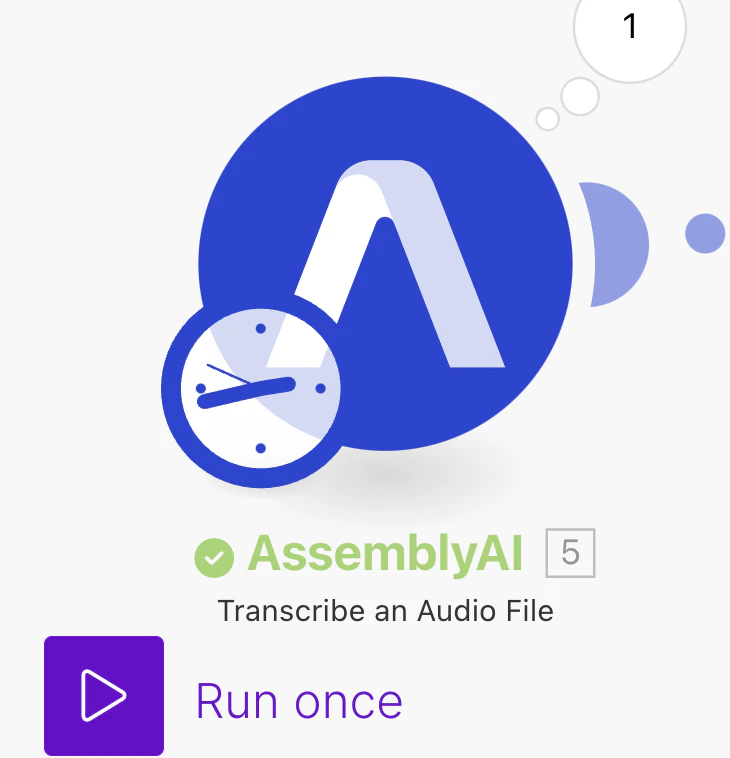
Step 1: Transcribe the Audio

Create a scenario in Make.com. Add a new module. Search for and select the AssemblyAI app and select the “Transcribe an Audio File” module. Add an audio URL. Select speaker labels and other models you’d like to run.
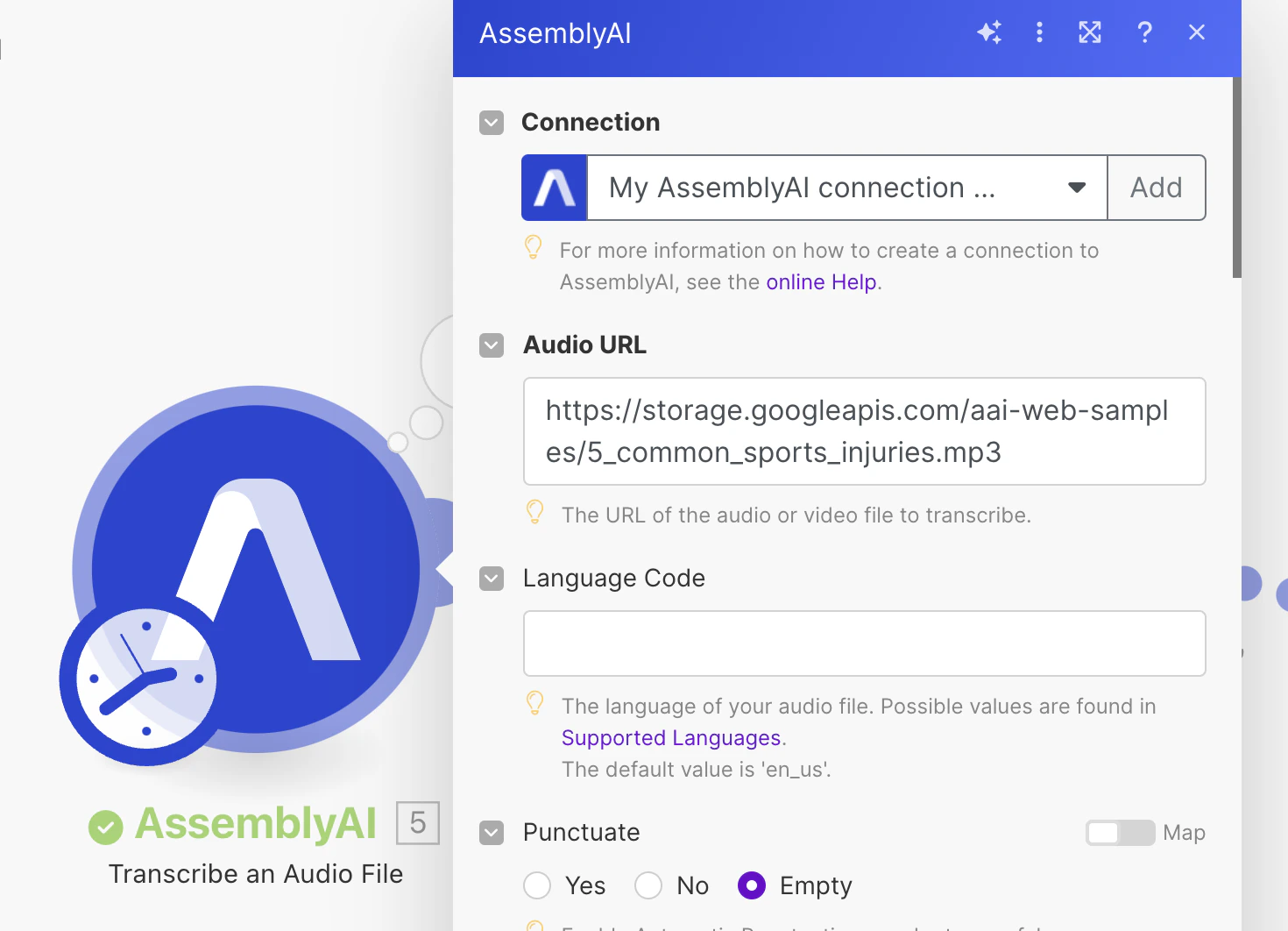
Transcribe Module

Click Run once to retrieve data.

Transcribe Module

Step 2: Wait for Completion

Next, add the “Wait until Transcript is Ready” module.
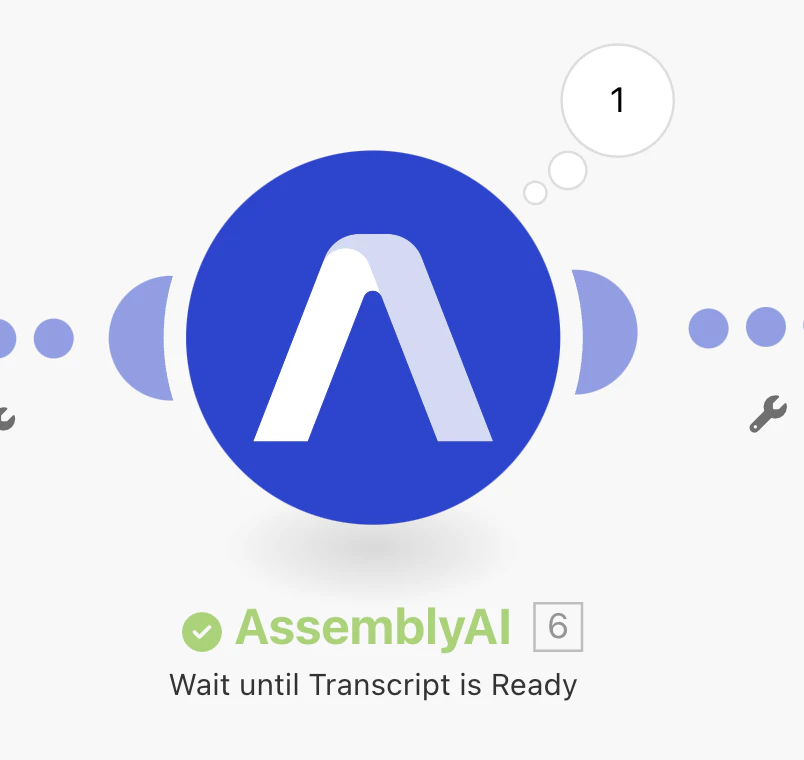
Wait for completion module

Select “ID” from the “Transcribe an Audio” module as input for the Transcript ID field.
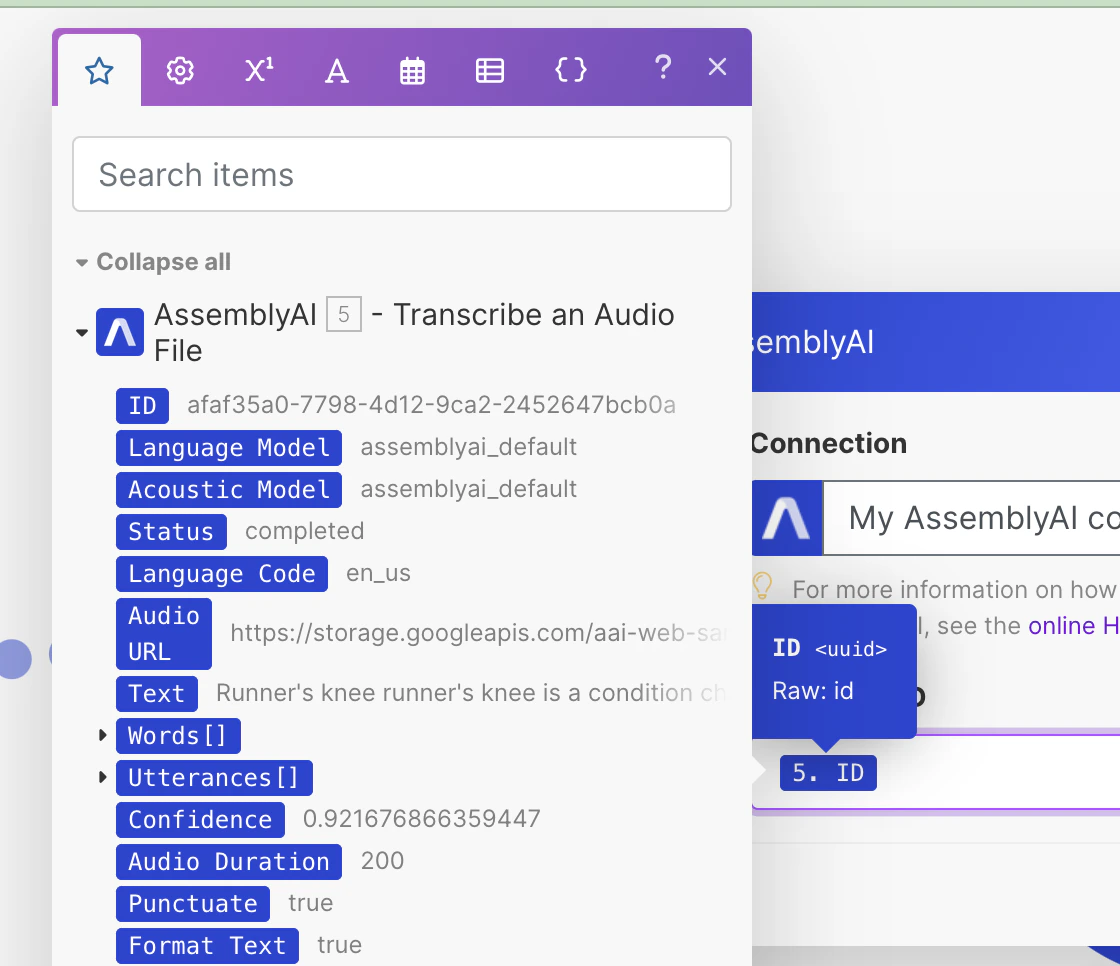
Returned data

Step 3: Get a Transcript

Next, add the “Get a Transcript” module and select “ID” from the “Transcribe an Audio” module as input for the Transcript ID field.
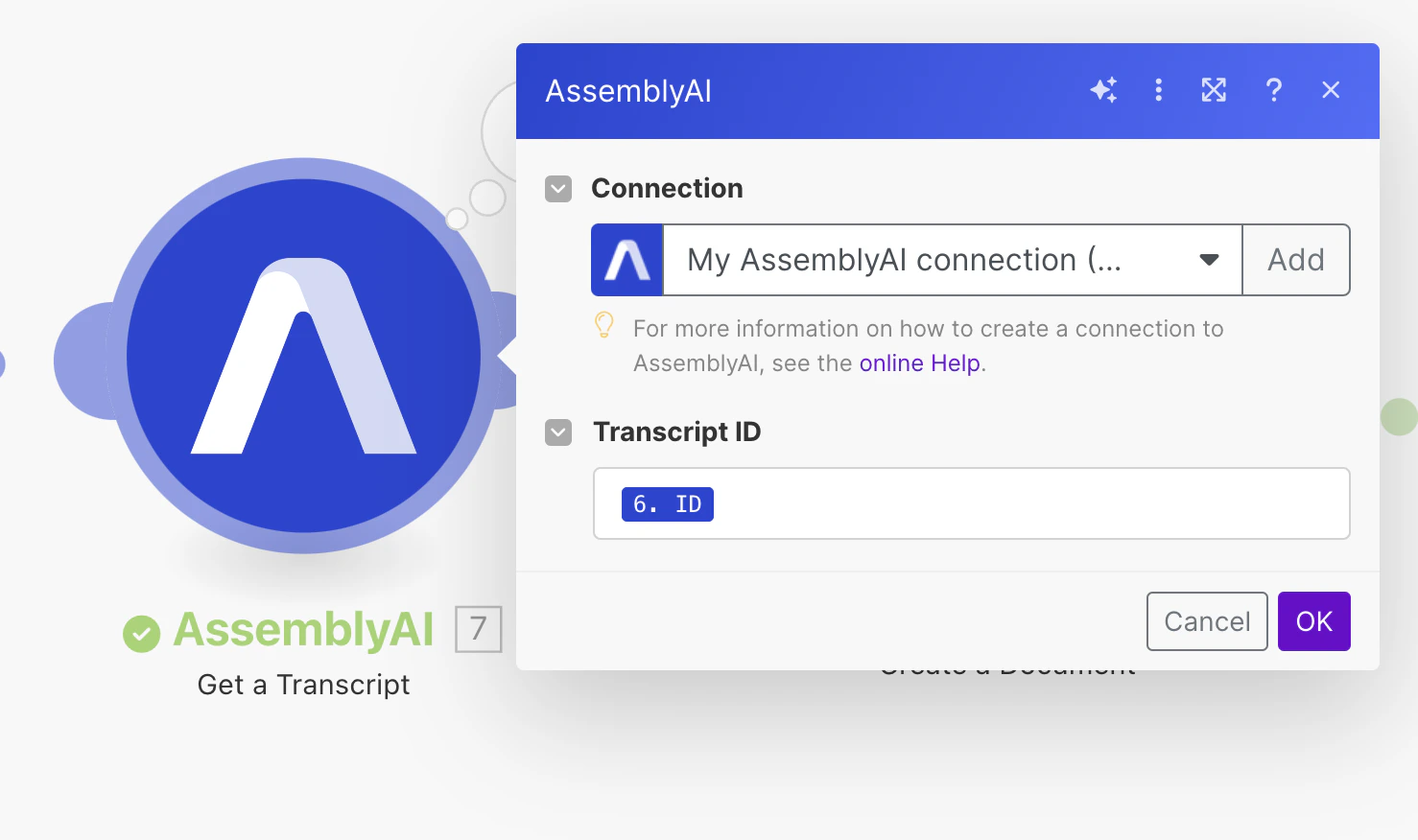
Get transcript module data

Step 4: Create a Document

Search for and add the Google Docs app. From there choose the “Create a Document” module. Connect your Google account and name the Doc what you’d like. Add some filler content as well. Additionally, choose where you’d like the Doc to be located.
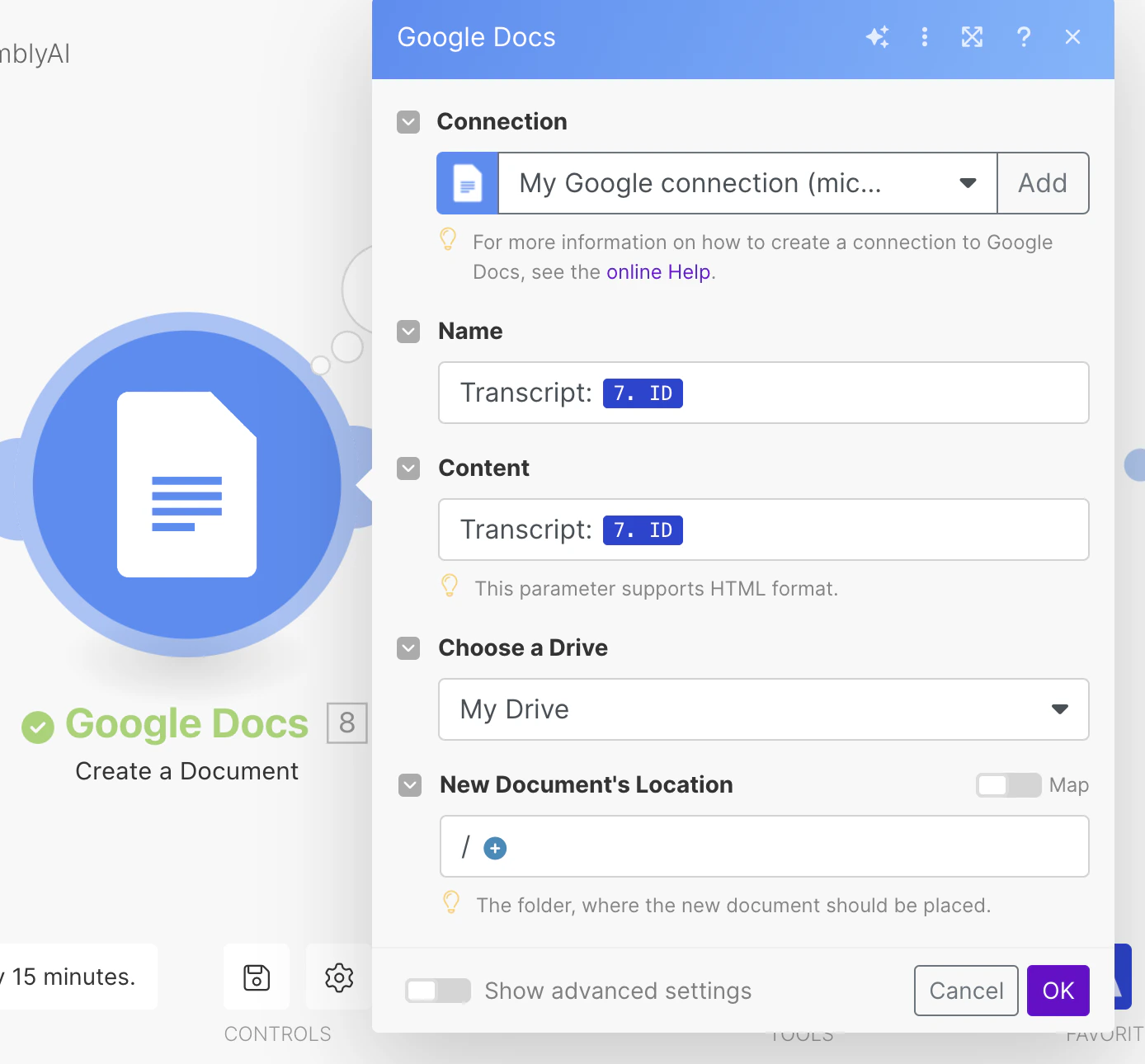
Create Google doc module

Step 5: Iterator Tool

Add the Iterator tool next. The speaker label data is in the utterances array. Select that array as input from the “Transcribe an Audio File” module. This tool will be used to perform a task for each utterance in the array. The next module will repeat its action for each utterance.
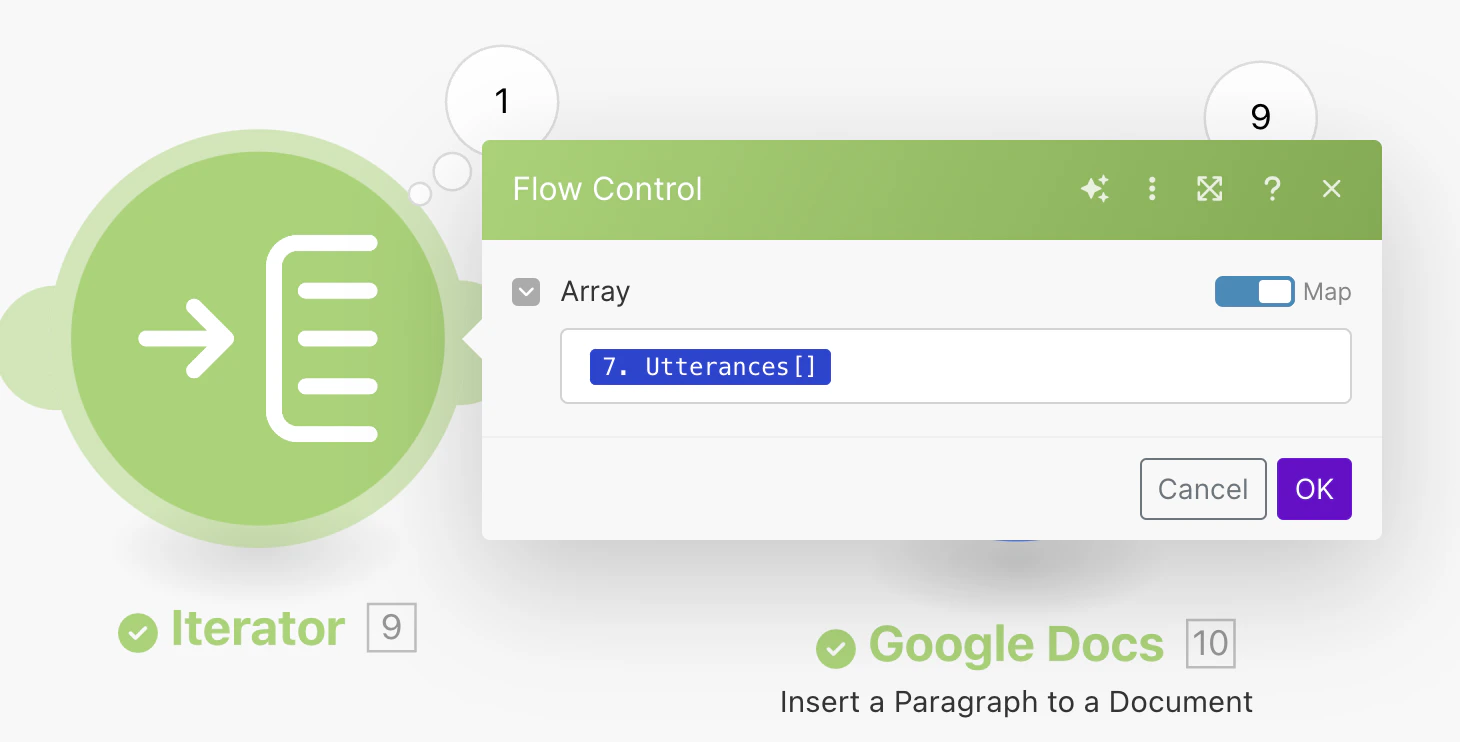
Iterator module

Step 6: Write Speaker Labels Data to Google Doc

Add a module and choose the “Insert a Paragraph” module from Google Docs. Connect your Google account if it’s not already connected (you may have to reconnect it if you get a failed to load error). In the “Select a Document” drop-down, choose “by mapping”. In the Document ID input field select document ID from the “Create a document” module. For appended text, you can follow the format below for a readable format.
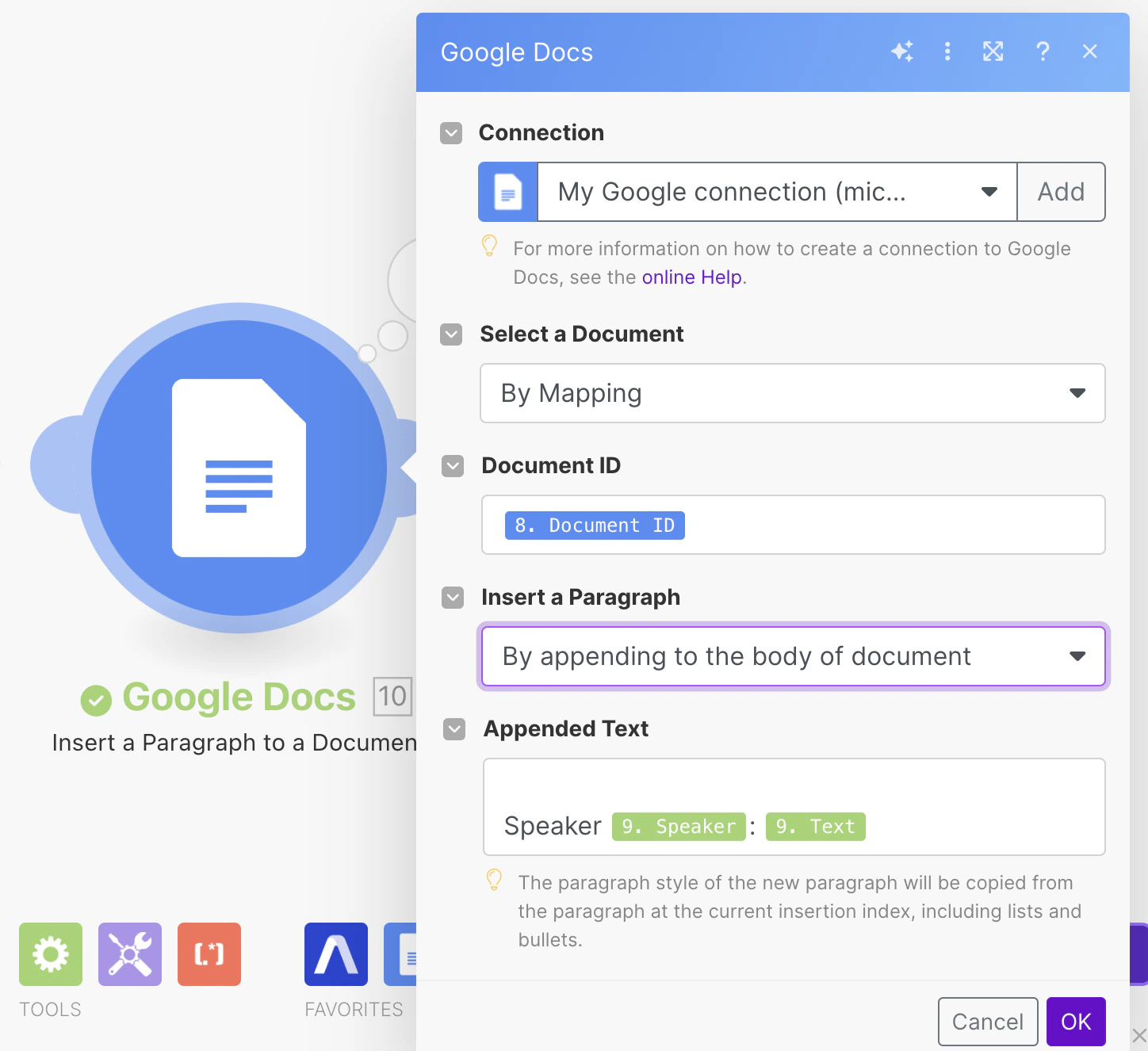
Insert paragrapgh module

Step 7: Run the Scenario.

Run the scenario and you should get a Google Doc in your Drive with the speaker labels included.

Image of Final Transcript