

Intro
In order to transcribe an audio file from an S3 bucket, AssemblyAI will need temporary access to the file. To provide this access, we’ll generate a presigned URL, which is simply a URL that has temporary access rights baked-in. The overall process looks like this:- Generate a presigned URL for the S3 audio file with boto3.
- Pass this URL through to AssemblyAI’s API with a POST request.
- Wait until the transcription is complete, and then fetch it with a GET request.
Prerequisites
First, you’ll need an AssemblyAI account. You can sign up for a free account if you don’t already have one. Next, you’ll need to take note of your AssemblyAI API key, which you can find on your account dashboard after signing in. It will be on the left-hand side of the screen under Your API Key. You’ll need the value of this key later, so leave the browser window open or copy the value into a text file.AWS IAM User
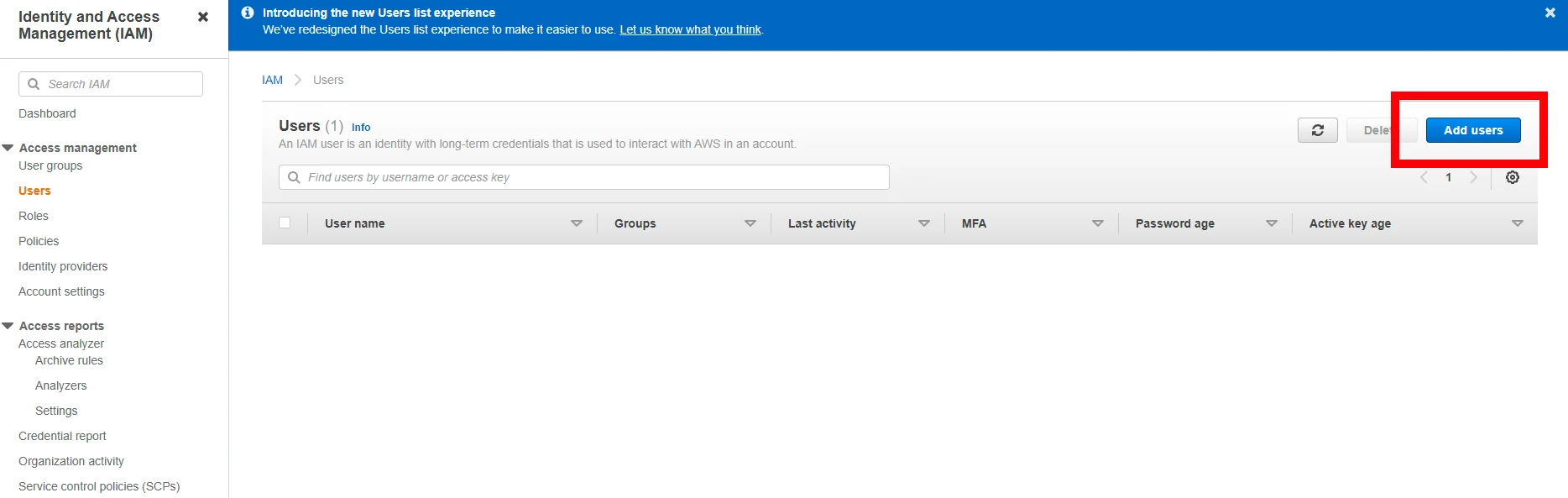
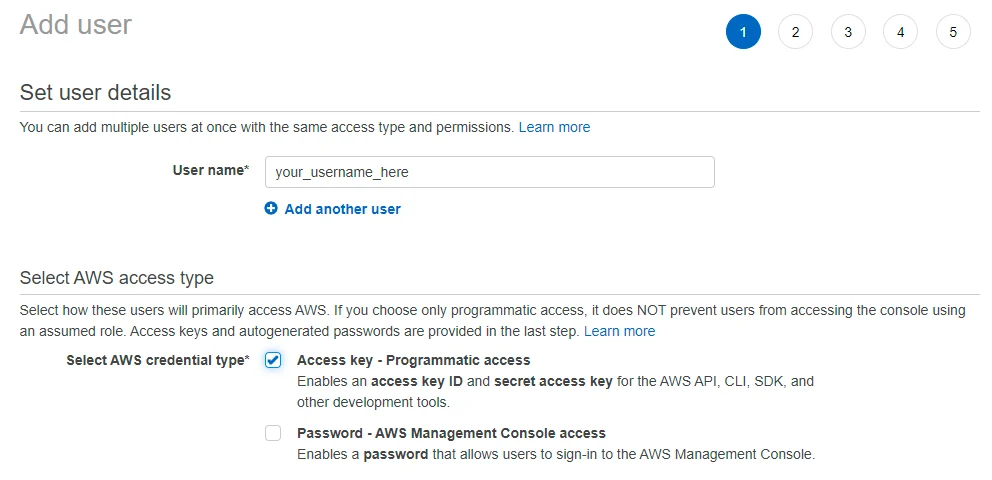
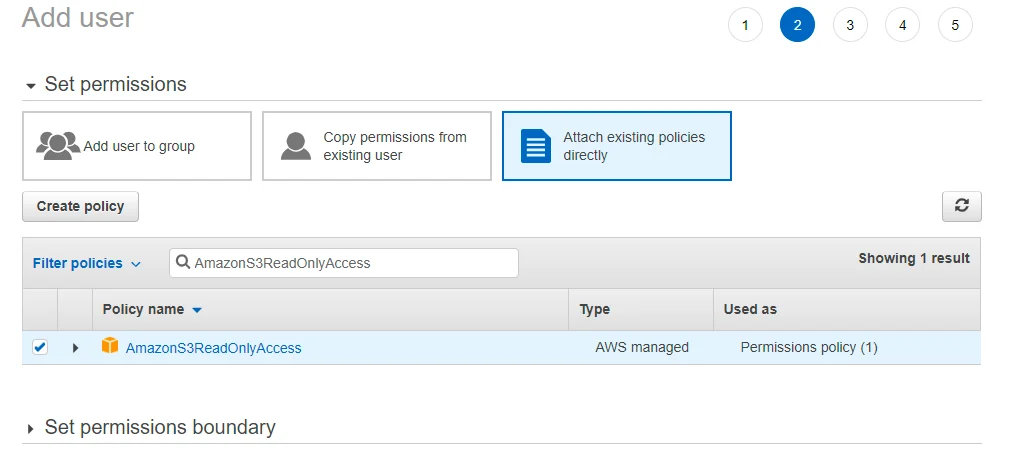
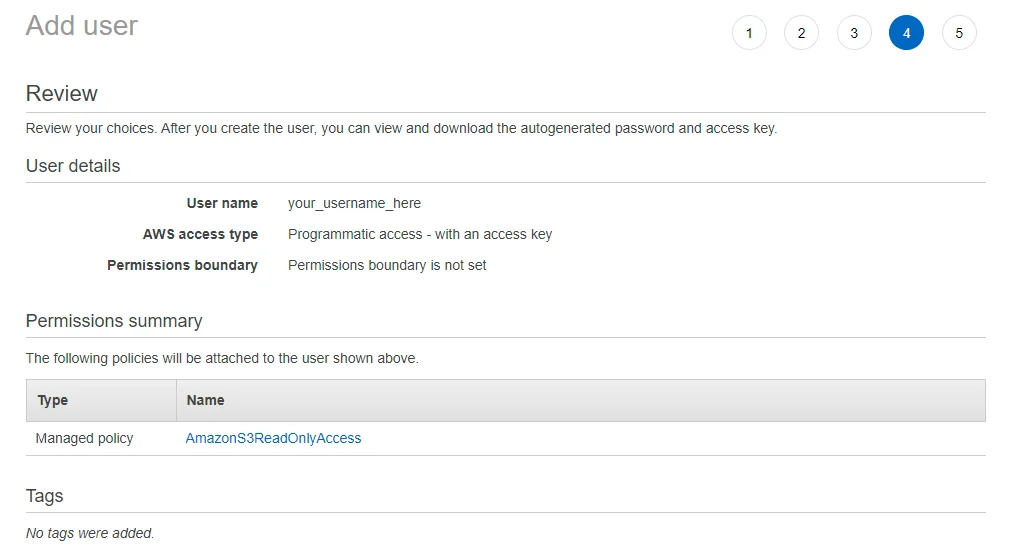
Second, you’ll need an AWS IAM user withProgrammatic access and the AmazonS3ReadOnlyAccess permission. If you already have such an IAM user and you know its public and private keys, then you can move on to the next section. Otherwise, create one now as follows:
First, log into AWS as a root user or as another IAM user with the appropriate access, and then go to the IAM Management Console to add a new user.
Code
First, the necessary packages are installed.bucket_name- The name of your AWS S3 bucket.object_name- The name of the audio file in the S3 bucket that you want to transcribe.iam_access_id- The access ID of the IAM user with programmatic access and S3 read permission.iam_secret_key- The secret key of the IAM user.assembly_key- Your AssemblyAI API key.
- Generate a presigned URL for the S3 audio file with boto3.
- Pass the presigned URL through to AssemblyAI’s API with a POST request.
- Wait until the transcription is complete, and then fetch it with a GET request.