For AI agents: a documentation index is available at the root level at /llms.txt and /llms-full.txt. Append /llms.txt to any URL for a page-level index, or .md for the markdown version of any page.
PlaygroundChangelogSign In
OverviewAPI ReferencePre-recorded STTStreaming STTVoice AgentsSpeech UnderstandingGuardrailsLLM GatewayFAQ
  • Getting started
    • Transcribe a pre-recorded audio file
    • Model selection
    • View model benchmarks
    • Evaluate model accuracy
    • Cloud endpoints & data residency
    • Manage concurrent requests
    • Webhooks
  • Models
    • Medical Mode
  • Features
    • Boost specific terms
    • Label speakers
    • Transcribe multiple audio channels
    • Transcribe audio with mixed languages
    • Correct spelling of terms
    • Include filler words
    • Search for words in transcript
    • Set the start and end of the transcript
  • Guides
      • Build a meeting notetaker
      • Build a medical scribe
      • Build a contact center application
        • Transcribe from an S3 Bucket
        • Transcribe a Google Drive File
        • Transcribe GitHub Files
LogoLogo
PlaygroundChangelogSign In
On this page
  • Step 1: Upload Your Audio File to Google Drive
  • Step 2: Make Your File Publicly Accessible
  • Step 3: Obtain the Downloadable URL
  • Step 4: Use the URL with AssemblyAI
  • Notes
GuidesTutorialsHosting audio files

Transcribe Google Drive Files

Was this page helpful?
Previous

Transcribe GitHub Files

Next
Built with

Step 1: Upload Your Audio File to Google Drive

  • File Requirements: Ensure your audio file is smaller than 100MB, as files larger than this cannot be directly downloaded from Google Drive links.
  • Uploading: Log into your Google Drive account and upload the audio file you want to use.

Step 2: Make Your File Publicly Accessible

  • Right-Click on the uploaded file in Google Drive.
  • Select ‘Get Link’.
  • Change the setting from “Restricted” to “Anyone with the link”. This makes the file publicly accessible.

Step 3: Obtain the Downloadable URL

  • Click on Copy link to copy your shared link.
  • Initially, the shared link will look something like this: https://drive.google.com/file/d/1YvY3gX-4ZwY7K4r3J0THKNTvvolB3D-S/view?usp=sharing.
  • To make it a downloadable link, modify it to this format:
    https://drive.google.com/u/0/uc?id=FILE_ID&export=download.
  • Example: If your shared link is https://drive.google.com/file/d/1YvY3gX-4ZwY7K4r3J0THKNTvvolB3D-S/view?usp=sharing,
    change it to https://drive.google.com/u/0/uc?id=1YvY3gX-4ZwY7K4r3J0THKNTvvolB3D-S&export=download.
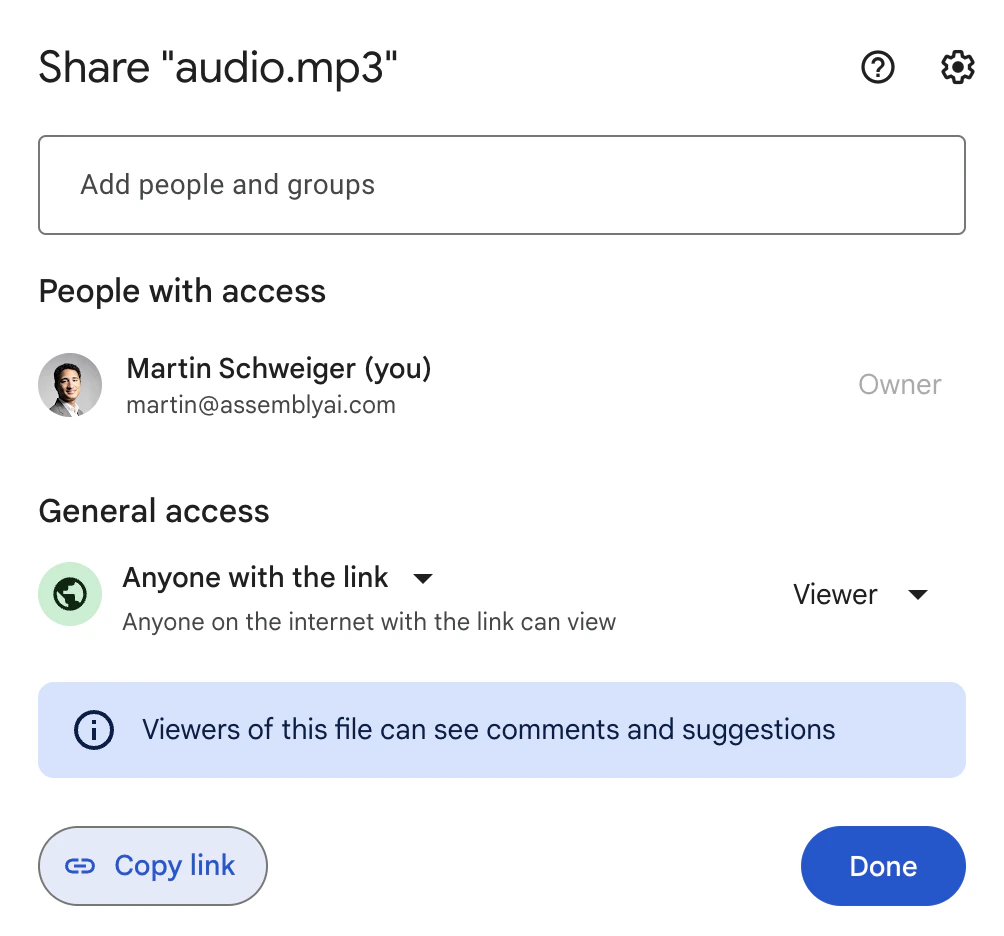
Google Drive screenshot

Step 4: Use the URL with AssemblyAI

  • Now, you can use this downloadable link in your AssemblyAI API request. This URL directly points to your audio file, allowing AssemblyAI to access and process it.
1config = aai.TranscriptionConfig(speech_models=["universal-3-pro", "universal-2"])
2transcriber = aai.Transcriber()
3
4audio_url = (
5"https://storage.googleapis.com/aai-web-samples/5_common_sports_injuries.mp3"
6)
7
8transcript = transcriber.transcribe(audio_url, config)

Notes

  • Security: Ensure that sharing your audio file publicly complies with your privacy and security policies.
  • If you prefer not to share your file publicly, you can upload your file to our servers instead.
  • File Format: Check that your audio file is in a format supported by AssemblyAI.